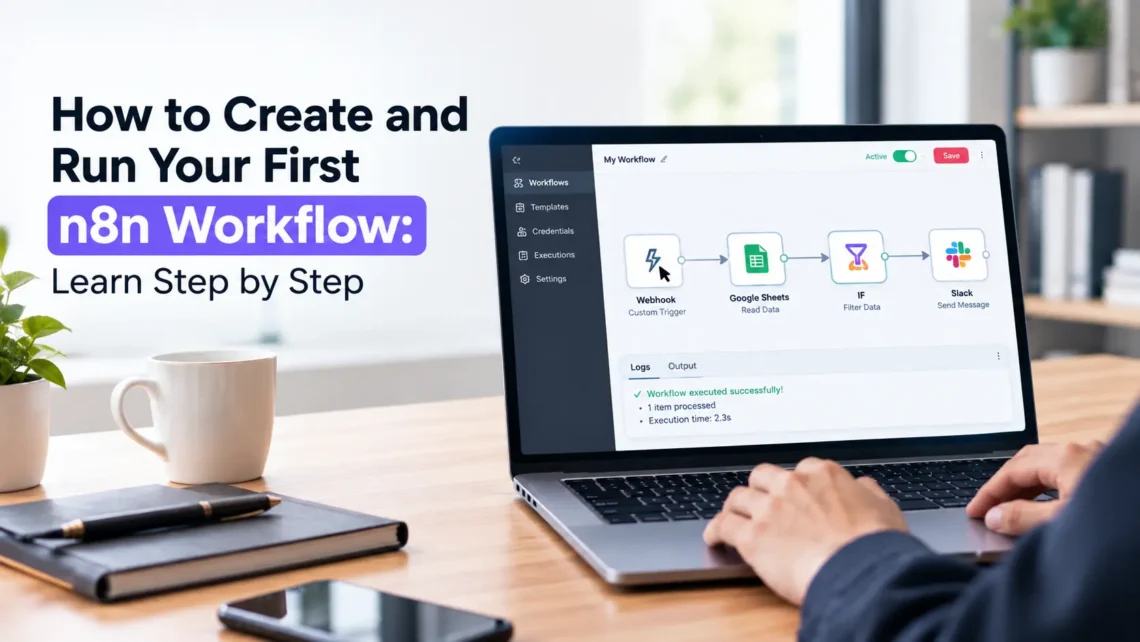
How do you create an n8n workflow? If you’re new to n8n, the easiest way to understand a workflow is to think of it as a series of connected steps. It starts with a trigger, moves through nodes that perform different actions, and passes data from one step to the next until the task is complete. If you want to learn how to build and run your first workflow using n8n, you’ll start by choosing a trigger, connecting the apps or services you need, deciding how the data should move, and testing everything before activating the workflow. In this guide, we’ll go through these basics and look at how triggers, nodes, and data work together to create a working automation.
Table of Contents
What Is an n8n Workflow?
An n8n workflow is a sequence of connected steps that automates a task without requiring a person to repeat it manually. Each workflow is built visually, with boxes called nodes linked together on a canvas, and each node handles one part of the process, such as receiving data, transforming it, or sending it somewhere else. A workflow can be as simple as sending a Slack message when a form is submitted or as involved as pulling data from multiple apps, filtering it, and updating a spreadsheet automatically.
What Are the Main Parts of a Workflow?
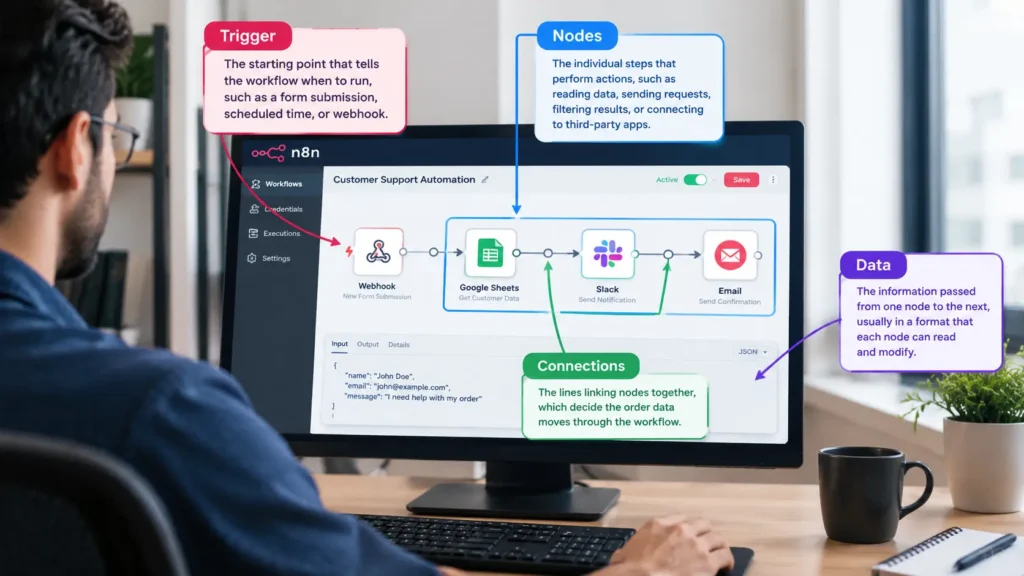
Every n8n workflow is built from a small set of components that repeat across almost every automation:
- Trigger: The starting point that tells the workflow when to run, such as a new form submission, a scheduled time, or an incoming webhook.
- Nodes: The individual steps that perform actions, including reading data, sending requests, filtering results, or connecting to third-party apps.
- Connections: The lines linking nodes together, which decide the order data moves through the workflow.
- Data: The information passed from one node to the next, usually in a format that each node can read and modify.
Understanding these four parts makes it easier to read any existing workflow, even one built by someone else.
How Does an n8n Workflow Work?
Once a trigger fires, n8n passes data into the first connected node. That node processes the data and passes its output to the next node in line, and this continues until the workflow reaches its final step. Each node only needs to know what to do with the data it receives, not what happens before or after it in the chain. This makes how n8n workflows work easier to follow than it first appears, since the logic stays broken into small, manageable pieces instead of one long script.
How Do You Create Your First Workflow?
Building a first workflow usually follows a consistent pattern:
- Open a new workflow in the n8n editor.
- Add a trigger node to define what starts the workflow.
- Add one or more action nodes to define what happens next.
- Connect the nodes in the order the data should flow.
- Configure each node with the specific details it needs, such as an API key, a spreadsheet name, or a message template.
- Save the workflow before moving on to testing.
A common beginner project is a workflow that watches for a new row in a Google Sheet and sends a notification to Slack or email when one appears. This gives a learner a working example without needing to touch any code. If you want to learn n8n workflow automation through practical examples, you can explore this n8n automation course to learn about workflow building, triggers, nodes, conditions, and automation projects.
How Do Triggers and Nodes Work?
n8n triggers decide when a workflow runs. Some common trigger types include a manual trigger for testing, a schedule trigger for recurring tasks, a webhook trigger for external systems sending data in real time, and app-specific triggers such as a new email arriving or a form being submitted.
n8n nodes handle everything that happens after the trigger. Action nodes send data somewhere, such as posting a message or creating a record. Logic nodes filter, sort, or branch the data based on conditions. Transform nodes reshape data into the format the next step needs. Most workflows combine several of these node types to complete a task from start to finish.
How Do You Connect Different Apps?
n8n includes built-in nodes for many popular apps and services, which handle the technical details of authentication and API requests. Connecting an app typically means adding its node to the workflow, entering the required credentials such as an API key or login token, and selecting the specific action to perform, like sending a message, creating a record, or fetching data. For apps without a dedicated node, n8n also supports generic HTTP request nodes, which can connect to almost any service that has an API.
How Do You Add Conditions and Data Processing?
Most workflows rarely run in a straight line. An IF node allows a workflow to branch based on a condition, such as sending data down one path if a value matches a rule and down a different path if it doesn’t. A Switch node handles multiple branches at once, which is useful when a workflow needs to route data several different ways depending on its content. Set and Function nodes let learners reshape, calculate, or clean data before it reaches the next step, such as combining two fields into one or converting a date format. Together, these steps turn a simple linear workflow into one that can handle variation in the incoming data.
How Do You Test and Activate a Workflow?
Before a workflow goes live, testing it catches problems early. n8n allows a manual test run, which shows exactly what data passes through each node and where something might be failing. Reviewing this output helps confirm that each node is receiving and sending the data it should. Once testing looks correct, activating the workflow switches it from manual mode into a live, running automation that responds to its trigger automatically. It helps to keep an eye on the first few live runs after activation, since actual data sometimes behaves differently than test data.
Beginner-Friendly n8n Workflows
A few starting examples give beginners a practical feel for how the pieces connect:
- Form to Slack notification: A new form submission triggers a message sent to a Slack channel.
- Scheduled data backup: A schedule trigger runs daily and copies data from one spreadsheet to another.
- New email to task creation: An incoming email trigger creates a new task in a project management tool.
- RSS feed to social post: A new blog post from an RSS feed triggers a draft post in a social media scheduling tool.
These are examples of n8n workflow automation that beginners can build and adapt without needing advanced technical knowledge.
Creating and running your first n8n workflow becomes easier once you understand how triggers, nodes, connections, and data work together. Start with a simple task, connect the required steps, test the workflow, and activate it once everything works as expected.
As you become more comfortable with n8n, you can add conditions, work with different types of data, connect APIs, and build workflows that handle more complex tasks. Starting small gives you a clear way to understand how n8n workflow automation works and gradually build more useful automations.